

以下是构建 pfSense ISO 文件的步骤。在看这篇教程之前,你可以先看看 PiBa-NL 的构建指南,但该指南对 2.50 版本不适合。以下教程针对 2.5.0 编写,也可以适用于其他版本。
一、选择构建的名称,并更新存储库
Netgate 不允许其他人使用名称“pfSense”(由于商标许可的问题)来构建产品。在生成 .iso 文件之前,必须为防火墙选择一个自定义名称。在本教程中,我们使用 libreSense,你也可以使用其他自定义名称。
然后,更新要使用的 3 个存储库:
FreeBSD Source
- fork https://github.com/pfsense/FreeBSD-src 并签出到 RELENG_2_5 分支。
- 在文件夹 /release/conf/ 中,将 pfSense_src-env.conf,pfSense_src.conf 和 pfSense_make.conf 重命名为 libreSense_src-env.conf,libreSense_src.conf 和 libreSense_make.conf。
- 将文件 /sys/amd64/conf/pfSense 重命名为 /sys/amd64/conf/libreSense。
- 编辑文件 /tools/tools/crypto/Makefile:从 PROGS 命令中删除 cryptokeytest。
FreeBSD Ports
- fork https://github.com/pfsense/FreeBSD-ports 并签出到 devel 分支(用于构建开发版)或 RELENG_2_5_0 分支(用于稳定版)。
- 在文件夹 /sysutils/pfSense-upgrade/files/ 中,将两个文件 pfSense-upgrade 和 pfsense-upgrade.wrapper 重命名为 libreSense-upgrade 和 libreSense-upgrade.wrapper。
pfSense GUI
- fork https://github.com/pfsense/pfsense。
- 转到您要构建的分支中的文件夹 /tools/templates/pkg_repos/(master 为开发版,RELENG_2_5_0 为稳定版)。
- 在文件名中将 pfSense 更改为 libreSense(例如 pfSense-repo.abi => libreSense-repo.abi)。
- 编辑文件 /src/etc/inc/globals.inc: 用 libreSense 替换 product_name 的内容。
- 在文件夹 /src/usr/local/share/, 将文件夹 pfSense 重命名为 libreSense。
Netgate 构建环境
了解我们将如何构建 ISO 以及搭建构建环境非常重要。
Netgate 使用了一个非常繁琐的构建环境,如下图所示: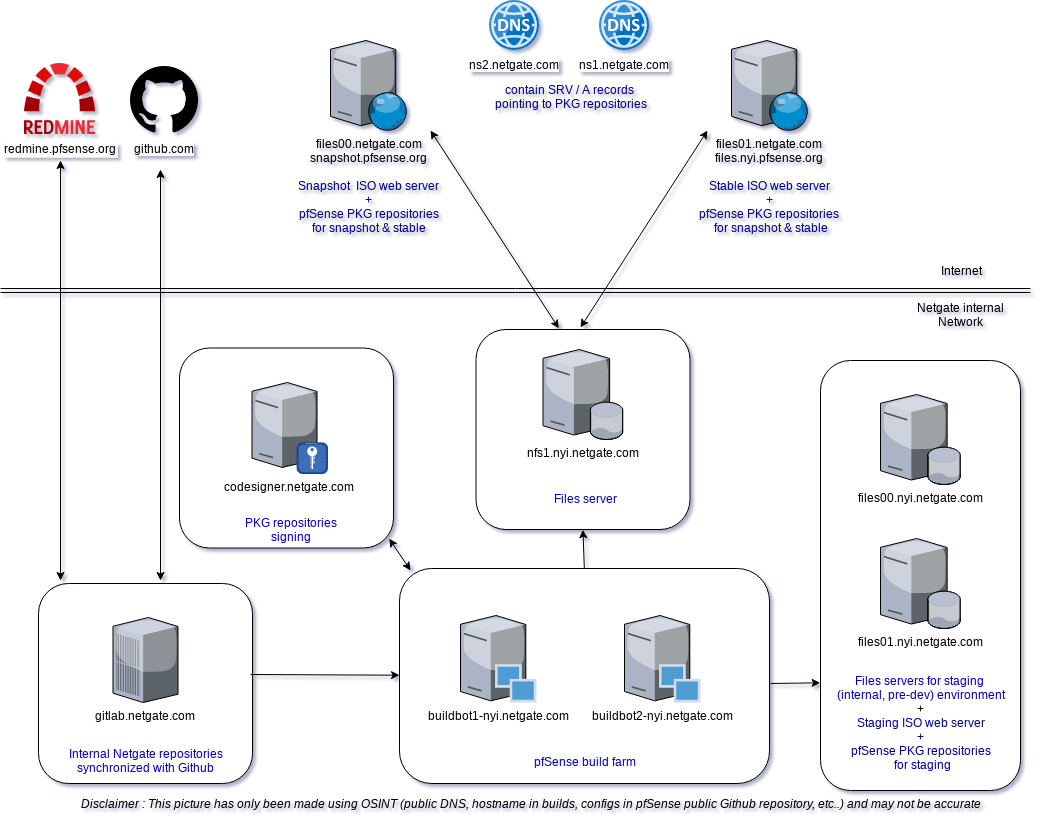
考虑本教程的目的不是建立商业化的构建环境,所以:
- 构建服务器还将充当用于交付 PKG 存储库的 Web 服务器(构建系统在制作 ISO 时正在积极使用 PKG 存储库)。
- PKG 签名脚本将位于构建服务器上。
- 文件生成后将不会发送到外部 NFS 服务器。
下面来设置构建服务器。
二、设置合适的构建环境
下载并安装与要构建的版本匹配的 FreeBSD 服务器。pfSense 2.5.0 需要 FreeBSD 12,使用 AMD64 平台架构。
服务器可以是 VM 或物理机。30 Gb 以上的硬盘空间,多核 CPU,内存大于 8Gb。可以在 这里 下载 FreeBSD ISO 文件。
服务器必须连接到 Internet,可以在工作站使用 SSH 和 HTTP 访问。
在安装过程中,请使用 ZFS 格式对磁盘进行分区。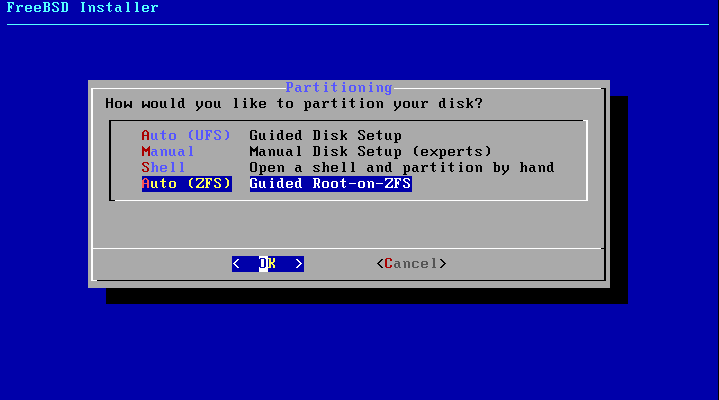
1、服务器配置
服务器系统安装完成以后,需要进行一些更新和配置。以 root 用户身份登录并执行以下命令:
# Allow SSH using root, if you want it.
echo PermitRootLogin yes >> /etc/ssh/sshd_config
service sshd restart

# Required for configuring the server
pkg install -y pkg vim nano

# Required for installing and building ports
pkg install -y git nginx poudriere-devel mkfile rsync sudo

# Required for building kernel and iso
pkg install -y vmdktool curl qemu-user-static gtar xmlstarlet pkgconf openssl111

# Required for building iso
portsnap fetch extract

# not required but advised for building/monitoring/debugging
pkg install -y htop screen wget

# Only install this if your FreeBSD is a virtual machine
pkg install -y open-vm-tools
然后,为 PKG 托管和 Poudriere 监视配置 nginx:
# pfSense_gui_branch represents the branch of pfSense GUI that will be compiled, with "RELENG" replaced by "v" : master for a development ISO, v2_5_0 for a stable ISO
# pfSense_port_branch represents the branch of FreeBSD ports that will be compiled, using the same replacement ("RELENG"=>"v") : devel for a development ISO, v2_5_0 for a stable ISO
# product_name represents the name of your product.

set pfSense_gui_branch=v2_5_0 # Replace with the version you want to build
set pfSense_port_branch=v2_5_0 # Replace with the version you want to build
set product_name=libreSense # Replace with your product name


cd /usr/local/www/nginx/
rm -rf *
mkdir -p packages
# PKG web server for core PKG repositories (pfSense-base, pfSense-rc, etc...)
ln -s /root/pfsense/tmp/${product_name}_${pfSense_gui_branch}_amd64-core/.latest packages/${product_name}_${pfSense_gui_branch}_amd64-core
# PKG web server for other PKG repositories
ln -s /usr/local/poudriere/data/packages/${product_name}_${pfSense_gui_branch}_amd64-${product_name}_${pfSense_port_branch} packages/${product_name}_${pfSense_gui_branch}_amd64-${product_name}_${pfSense_port_branch}
# Web server for monitoring ports build
ln -s /usr/local/poudriere/data/logs/bulk/${product_name}_${pfSense_gui_branch}_amd64-${product_name}_${pfSense_port_branch}/latest poudriere

# Allow directory indexing, and configure nginx to start automatically on boot
sed -i '' 's+/usr/local/www/nginx;+/usr/local/www/nginx; autoindex on;+g' /usr/local/etc/nginx/nginx.conf
echo nginx_enable=\"YES\" >> /etc/rc.conf
service nginx restart
2、设置签名密钥
在服务器中设置签名密钥。执行以下命令生成签名密钥:
mkdir -p /root/sign/
cd /root/sign/
openssl genrsa -out repo.key 2048
chmod 0400 repo.key
openssl rsa -in repo.key -out repo.pub -pubout
printf "function: sha256\nfingerprint: `sha256 -q repo.pub`\n" > fingerprint
然后在 /root/sign/ 文件夹中创建一个脚本文件 sign.sh。
#!/bin/sh
read -t 2 sum
[ -z "$sum" ] && exit 1
echo SIGNATURE
echo -n $sum | openssl dgst -sign /root/sign/repo.key -sha256 -binary
echo
echo CERT
cat /root/sign/repo.pub
echo END
最后,确保此脚本是可以执行的:
chmod +x /root/sign/sign.sh3、配置 pfSense
现在已经配置了服务器,我们将配置 pfSense 的编译方式。克隆 pfSense GUI 的 fork,签出将要构建的分支,并配置 fork 来使用前面创建的签名密钥。
cd /root
git clone https://github.com/{your username}/pfsense.git
cd pfsense
git checkout ${pfSense_gui_branch}

# PKG signing key
rm src/usr/local/share/${product_name}/keys/pkg/trusted/*
cp /root/sign/fingerprint src/usr/local/share/${product_name}/keys/pkg/trusted/fingerprint
在 pfSense GUI 文件夹中创建一个名为 build.conf 的文件。
export PRODUCT_NAME="libreSense" # Replace with your product name
export FREEBSD_REPO_BASE=https://github.com/{your username}/FreeBSD-src.git # Location of your FreeBSD sources repository
export POUDRIERE_PORTS_GIT_URL=https://github.com/{your username}/FreeBSD-ports.git # Location your FreeBSD ports repository

export FREEBSD_BRANCH=RELENG_2_5 # Branch of FreeBSD sources to build

# The branch of FreeBSD ports to build is set automatically based on pfSense GUI branch.
# If you would like to build a specific branch of FreeBSD ports, the variable to set is POUDRIERE_PORTS_GIT_BRANCH
# Also, if you are building a FreeBSD port branch that does not respect Netgate conventions (devel or RELENG_*),
# You will also have to update .conf files in "tools/templates/pkg_repos/" because repositories names are partially
# hardcoded there.


# Netgate support creation of staging builds (pre-dev, nonpublic version)
unset USE_PKG_REPO_STAGING # This disable staging build
# The kind of ISO that will be built (stable or development) is defined in src/etc/version in pfSense GUI repo

export DEFAULT_ARCH_LIST="amd64.amd64" # We only want to build an x64 ISO, we don't care of ARM versions

# Signing key
export PKG_REPO_SIGNING_COMMAND="/root/sign/sign.sh ${PKG_REPO_SIGN_KEY}"

# This command retrieves the IP address of the first network interface
export myIPAddress=$(ifconfig -a | grep inet | head -1 | cut -d ' ' -f 2)

export PKG_REPO_SERVER_DEVEL="pkg+http://${myIPAddress}/packages"
export PKG_REPO_SERVER_RELEASE="pkg+http://${myIPAddress}/packages"

export PKG_REPO_SERVER_STAGING="pkg+http://${myIPAddress}/packages" # We need to also specify this variable, because even
# if we don't build staging release some ports configuration is made for staging.
三、创建 ISO 文件
首先,使用命令 screen -S build 在构建服务器上启动一个屏幕。可以使用 ctrl + A,然后使用 D 离开此屏幕,并可以使用命令 screen -r build 再次进入此屏幕。
1、设置 Jails
执行命令: ./build.sh --setup-poudriere。这将设置环境并创建构建所需的 FreeBSD jail 。然后可以离开屏幕,执行 tail -f logs/poudriere.log 检查是否已设置完成。预计该命令将运行约半小时。
如果出现问题:
- 可以在 build.sh 的开头添加 set -x 来调试查看其中发生的情况。
- 可以使用命令
poudriere jail -l列出创建的 jails ,也可以使用poudriere jail -d -j {jailName} -C clean删除创建的 jails 。 - 还可以验证是否为 FreeBSD 端口 build.conf 输入了错误的 URL。这会导致命令无法执行(在这种情况下,会在日志中显示一条消息,请输入“https://github.com”的用户名)。
2、建立端口
执行 ./build.sh --update-pkg-repo 来编译 pfSense 的 ~500 FreeBSD 端口。可以使用 HTTP 监视服务器上的构建环境(http://服务器IP地址/poudriere)。预计运行时间 2 到 4 个小时。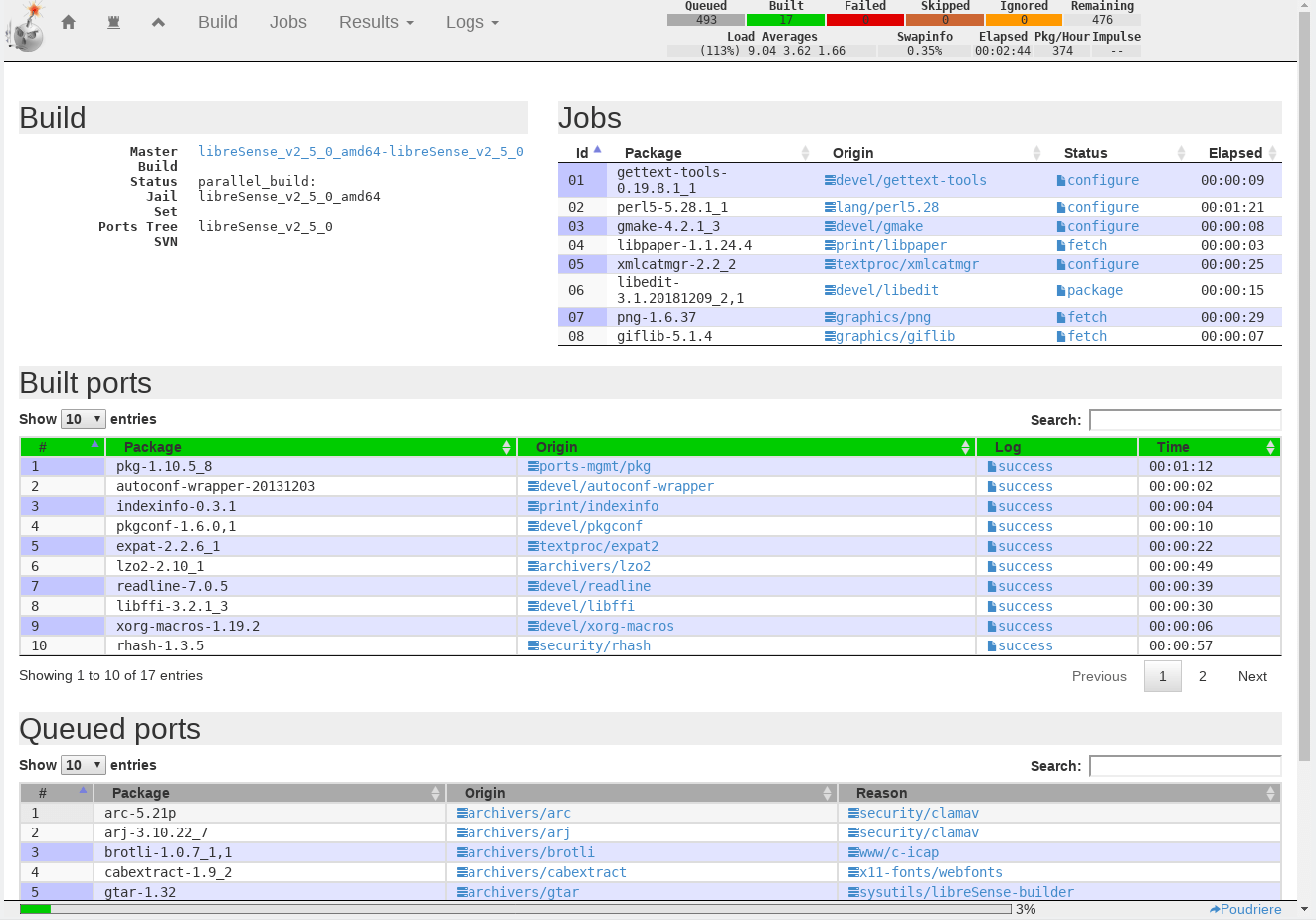
如果出现问题,可以使用 HTTP 或直接在服务器的 /usr/local/poudriere/data/logs/bulk/ 目录中查看日志文件。需要分析每个失败端口的日志,来查找每个端口的问题。
可能的原因:
- 试图构建的 FreeBSD-port 分支与构建服务器的 FreeBSD 版本不匹配。
尝试构建 pfSense 的版本过时,并且某些 dist 文件在 FreeBSD 官方 distcache 上不再使用,从而导致无法获取文件。
- 可以在 FreeBSD 端口的 GitHub 分支中更新每个相关端口的 distinfo,然后运行
./build.sh --update-poudriere-ports来刷新构建服务器上的文件。 - 或者找到任何旧的 dist 镜像(例如该 镜像),将构建服务器上的文件下载到其匹配的文件夹中(使用
wget/curl),然后继续构建。
- 可以在 FreeBSD 端口的 GitHub 分支中更新每个相关端口的 distinfo,然后运行
需要先构建所有端口,然后再继续下一步。如果不想建立一个端口,则可以通过在 poudriere_bulk 中删除该端口来进行排除。
3、构建内核并创建 ISO
执行命令 ./build.sh --skip-final-rsync iso 构建内核,然后设置端口并创建 ISO 文件。该命令将运行约一小时左右。
构建过程可以从 pfSense GUI 的 logs/ 目录中的两个文件进行查看:
buildworld.amd64,installworld.amd64和kernel.libreSense.amd64.log包含与 FreeBSD 内核构建有关的日志。install_pkg_install_ports.txt包含有关端口安装的日志。从build.conf文件中指定的 URL 可以检索到它们。isoimage.amd64和cloning.amd64.log包含有关 ISO 本身构建的日志。
在构建结束时,~pfsense/tmp/${product_name}/installer/ 中将存在一个压缩的 iso 文件(.iso.gz)文件。如果需要普通的 ISO 文件,可以使用 gzip -kd *.gz 进行提取。
4、故障排除:
导致构建失败的一个非常可能的原因,与 Makefile 系统的工作方式和不幸的时机有关。通常会发生以下情况:
- Netgate 从
FreeBSD-ports建立端口 XXX。Poudriere 将端口标记为已构建,并且除非对代码进行了更新(“配置缓冲”),否则不会尝试重新构建它。 - Netgate 不会刷新
FreeBSD-ports上的 pfSense 分支。 - 端口所有者更新了其构建要求(
distfile更新),或 Netgate 更新了其构建环境(例如:openssl => opensll111),但是不会重新构建已构建的软件包,因为在端口上未进行任何配置更改。此时,任何不更新FreeBSD-ports而重建端口的尝试都将失败。
FreeBSD-src 的内容也是如此。解决此问题的推荐方法是简单地重新同步上游发生故障的模块,以便拥有最新的 ISO。
同样,Netgate 过去也被指控在 Freebsd-src 上执行延迟的开源。目前尚不清楚是否是由于用户对构建系统的工作方式有误解,还是 Netgate 的阴暗做法或临时维护。如果发生这种情况,可以直接将 FreeBSD 源与分支合并。
四、正版 ISO 和自己构建 ISO 之间的区别
自己构建的 ISO 与 Netgate 发布的 pfSense ISO 的构建方式相同,包含相同的代码。但有一个主要区别:自己构建的 ISO 不包含 GNID。
GNID 是一个二进制文件(位于 /usr/sbin/gnid),用于管理 pfSense 的 Netgate 许可证。该二进制文件为每个正版 pfSense 生成一个唯一的 Netgate ID。然后,在使用 PHP 发出 HTTP 请求时,生成的唯一 ID 将成为默认“用户代理”的一部分(HTTP 请求用于获取 Bogon,安装软件包,显示第一条版权消息等)。访问 pfSense 上的 Netgate 服务(例如 ACB 或专业支持)也是必需的。
该二进制文件的工作方式是已知的(使用 radare2 快速查看该二进制文件,可以发现它试图获取其运行的平台信息,如果平台不是 Netgate 硬件,则它将使用 sha256 和设备的 MAC 地址来计算 ID),但是此程序是 Netgate 的属性,并且是封闭源代码(存储在 Netgate 的内部 GitLab 中)。
由于自己构建的 ISO 不包含 GNID,因此可能无法从 Netgate 检索 bogon 更新、使用 ACB、从官方存储库安装软件包或寻求 Netgate 的专业支持,当然也不会收到最新的 pfSense 更新。
原文地址:https://github.com/Augustin-FL/building-pfsense-iso-from-source#how-to-building-a-pfsense-iso-from-sources
觉得内容不错?我要